
This guide covers the new iPhone app, version 0.5, which is in beta. Some screens may look different in the version on the App Store until the new one is released. Screenshots use made-up demo data on a test server, so your server's name and address will differ.
Get started
Josi on iPhone is a window onto your own Josi server. Your conversations, contacts and settings live on that server, not in the app, so you need a running server before the app can do anything. If you don't have one yet, start with Install Josi.
Install the app
Install Josi from the App Store. If you were invited to the beta, install it from the TestFlight app instead.
Choose a skin
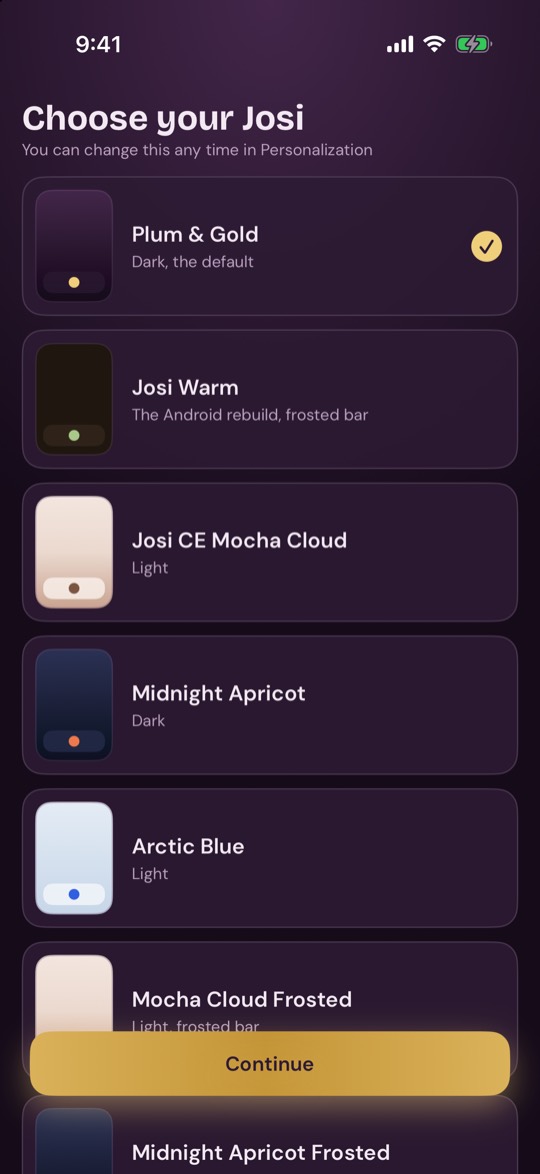
The first time you open the app, it asks you to choose how Josi looks. Tap a skin to try it, then tap Continue. Plum & Gold is the default. You can change this at any time under Personalization.
Connect to your server
The app connects straight to your server by its address. You need the address the server answers at: a LAN IP, a hostname or a domain. On your server, open Admin → Network & address to see its Public address and its address on your network.
- Enter the server's address, for example
https://josi.example.com. - Tap Connect.
Use https:// for any address you reach from outside your own network.
The app accepts plain http:// only for localhost, .local
names and addresses on your own network. If you leave out the scheme, the app adds
https://. The address has to be reachable from where your iPhone is.
Change server under Settings lets you enter a
different one later.
Sign in
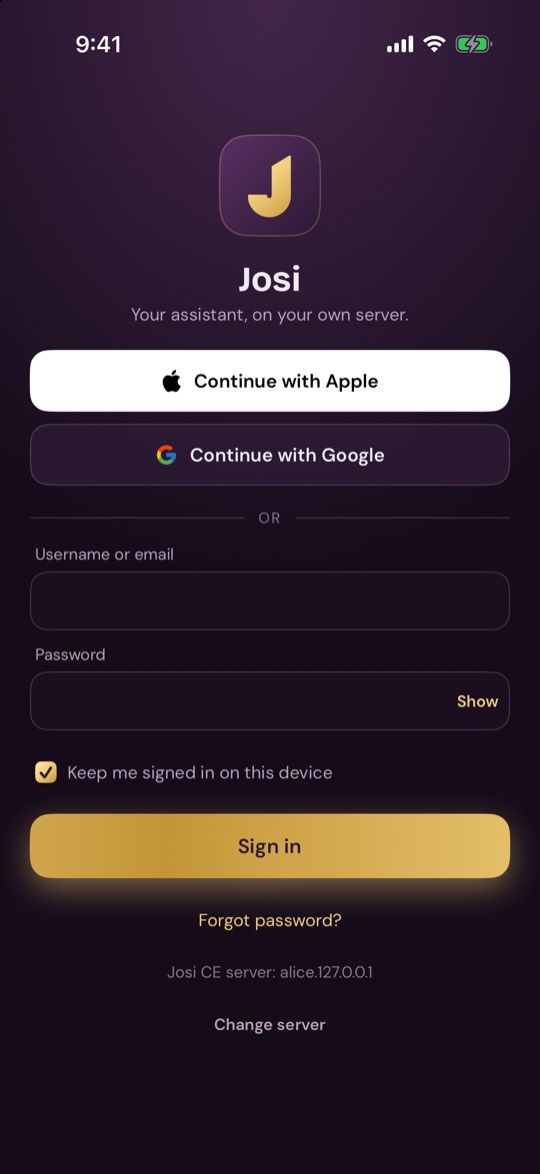
Use the same account you use on your server. You can sign in three ways:
- Continue with Apple. The first time, Josi may ask for your workspace password once to link your Apple ID to your account.
- Continue with Google, when your server has Google sign-in set up.
- Username or email and Password, then Sign in. Tap Show to see the password as you type.
Keep me signed in on this device is on by default. Below the form, the app shows which server you're signing in to. Change server takes you back to the address screen.
Authenticator code
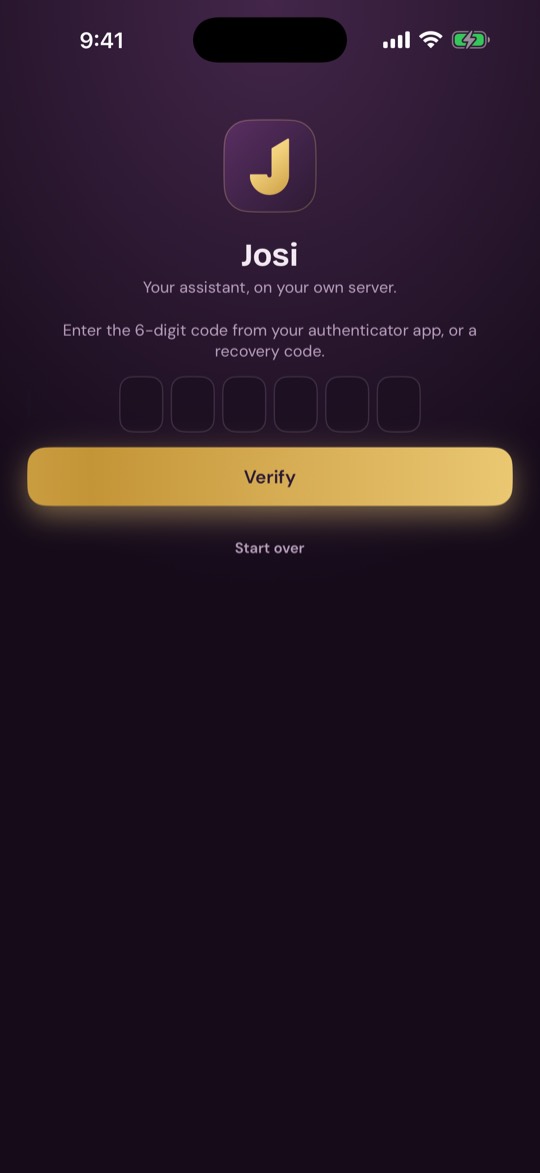
If your account uses an authenticator app, Josi asks for the 6-digit code after your password, Apple or Google sign-in. Enter it and tap Verify. A recovery code works here too. Start over goes back to the sign-in screen.
Forgot your password
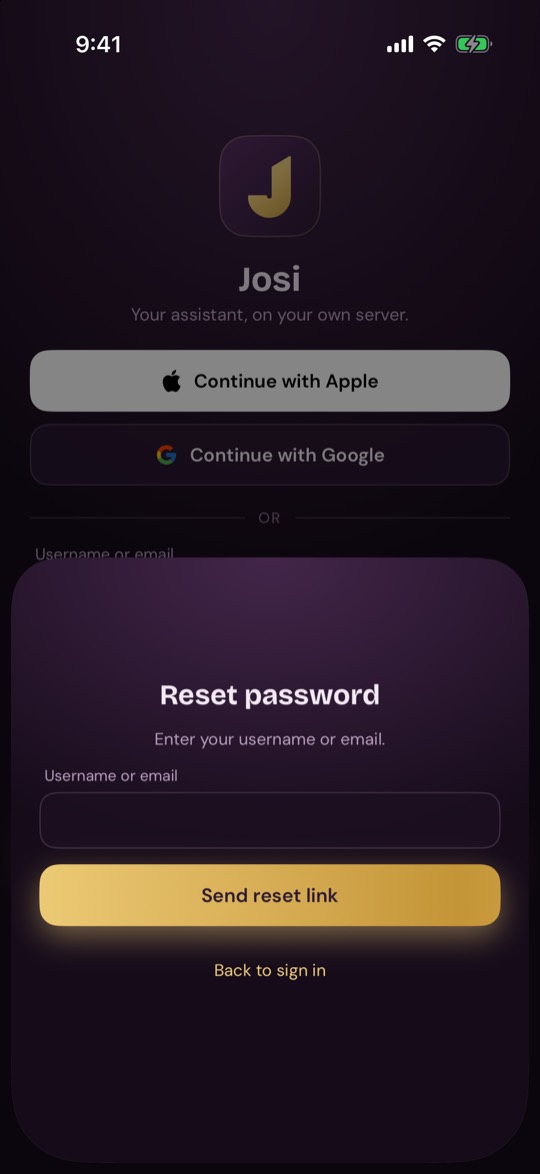
Tap Forgot password?, enter your username or email and tap Send reset link. If the account exists, your server emails a link. Back to sign in closes the sheet.
Allow AI processing
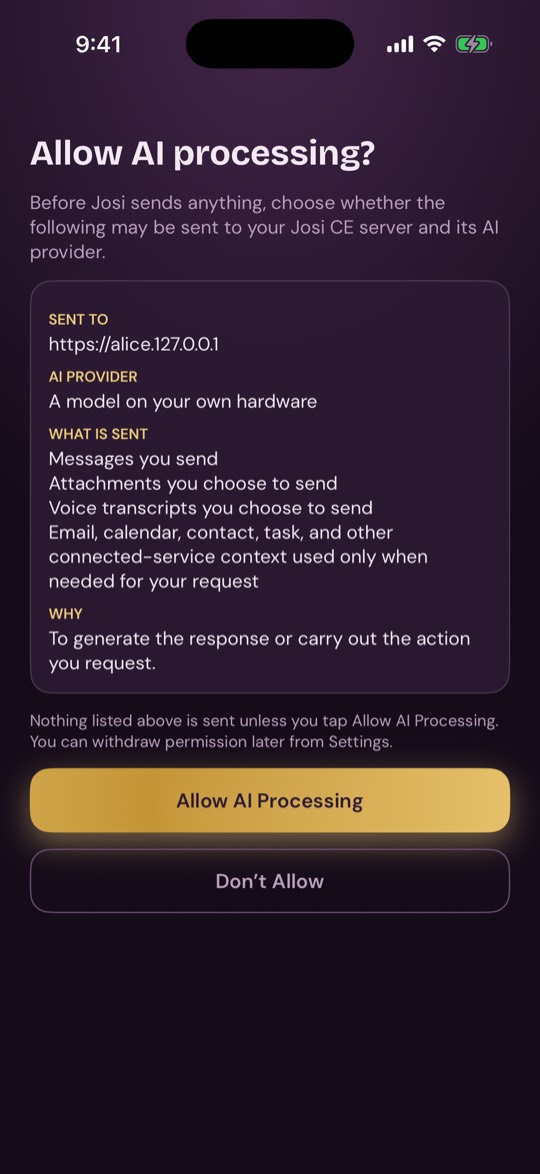
Before Josi sends anything for AI processing, it shows exactly what would be sent:
- Sent to: your server.
- AI provider: the model your server uses, and whether it's external.
- What is sent: your messages, attachments and voice transcripts, plus email, calendar, contact, task and other connected-service details only when your request needs them.
- Why: to generate the response or carry out the action you asked for.
Tap Allow AI Processing to continue. If you tap Don't Allow, nothing is sent and chat stays blocked. You can tap Review the disclosure again at any time, or Sign out or Change server. You can withdraw permission later from Settings.

Chat
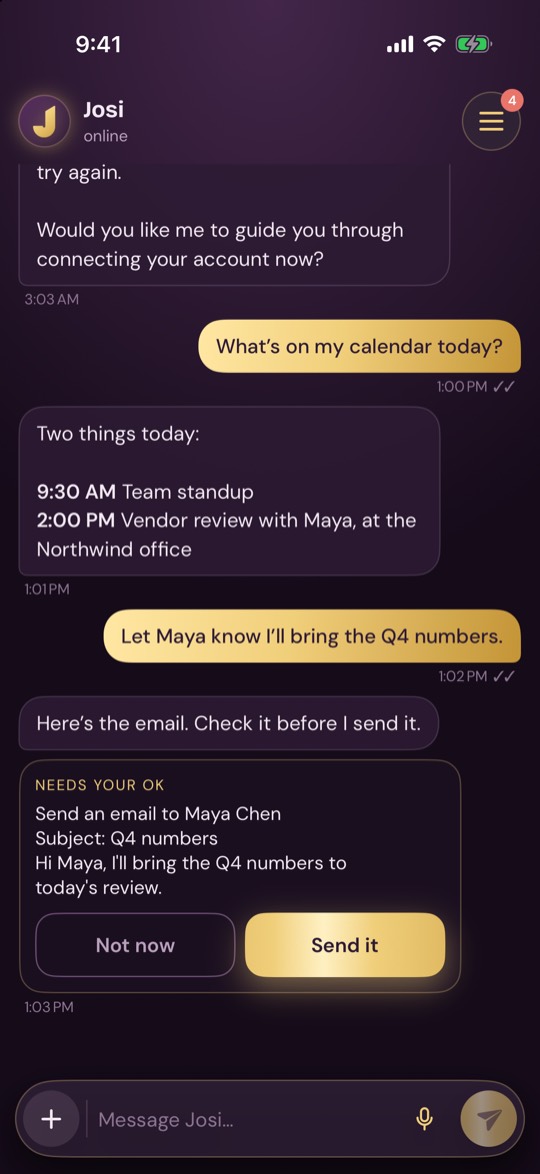
Chat is the home screen. It's the same conversation you see on your other devices.
The header
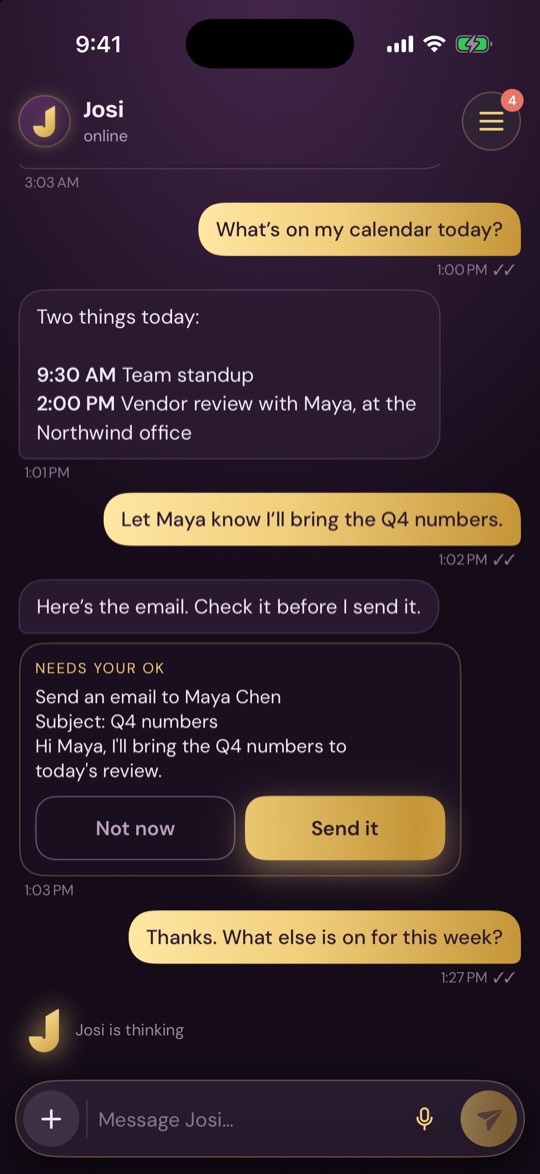
- online or offline shows whether the app can reach your server. When it can't, some pages show what was last saved.
- Local-only appears when your server only allows self-hosted models.
- The button at the top right opens the menu. Its number counts your open tasks and approvals.
Send a message
Type in Message Josi… and tap the send button, or press Return. Pull down on the conversation to refresh it. You can select text in any message. Under each message you'll see the time. Under yours, two ticks mean it was sent. You may also see:
- Queued: waiting to be sent.
- Sending: on its way.
- Working: your server has it and Josi is working on it.
- Failed: it didn't go through. Tap Retry.
When Josi used your connected accounts to answer, What Josi read appears under the reply and lists what it looked at.
Attach photos and files
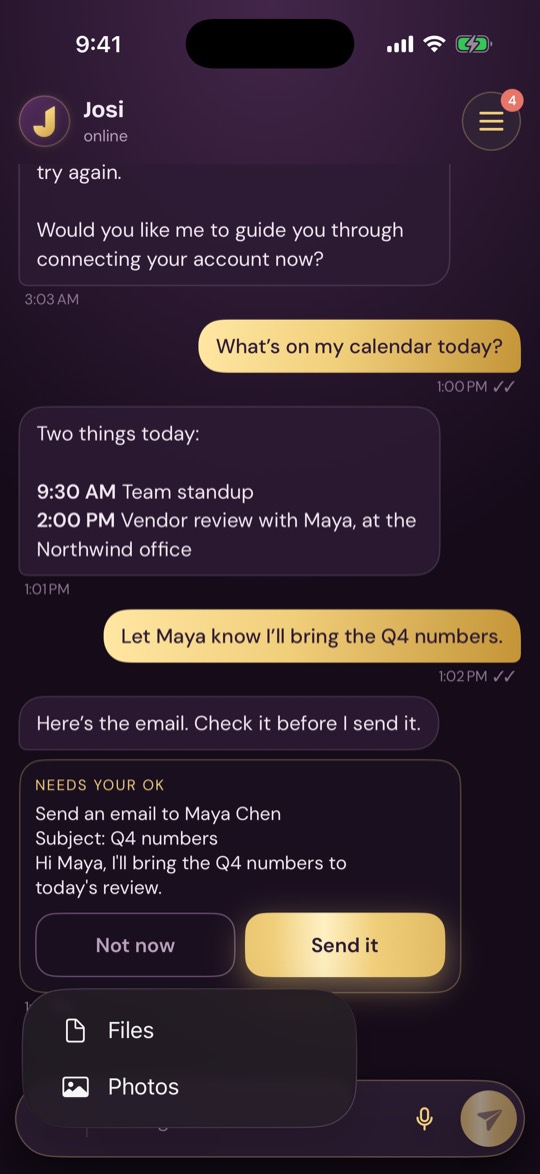
Tap +, then Photos or Files. You can add up to 10 at a time. Attachments appear above the message box. Tap the × on one to remove it, then send. Files can be pictures, PDFs, Word, Excel, PowerPoint, OpenDocument, RTF, text, Markdown or CSV.
Talk with your voice
Tap the microphone to start talking and tap it again to stop. Your words appear above the message box as Josi hears them, and Josi answers out loud. The first time, iPhone asks for permission to use the microphone.
Voice needs Voice Box on your server. An owner can set that up under Voice Box.
Approve what Josi wants to do
When Josi needs your OK, a Needs your OK card appears in the chat showing exactly what it will do.
- Send it approves the action. Your iPhone asks for Face ID, Touch ID or your passcode first. The card then says Sent.
- Not now saves it for later. Nothing runs, and it stays under Approvals until you decide or it expires.
You may also see Denied. It won't run. or Expired. Review it again.
The menu
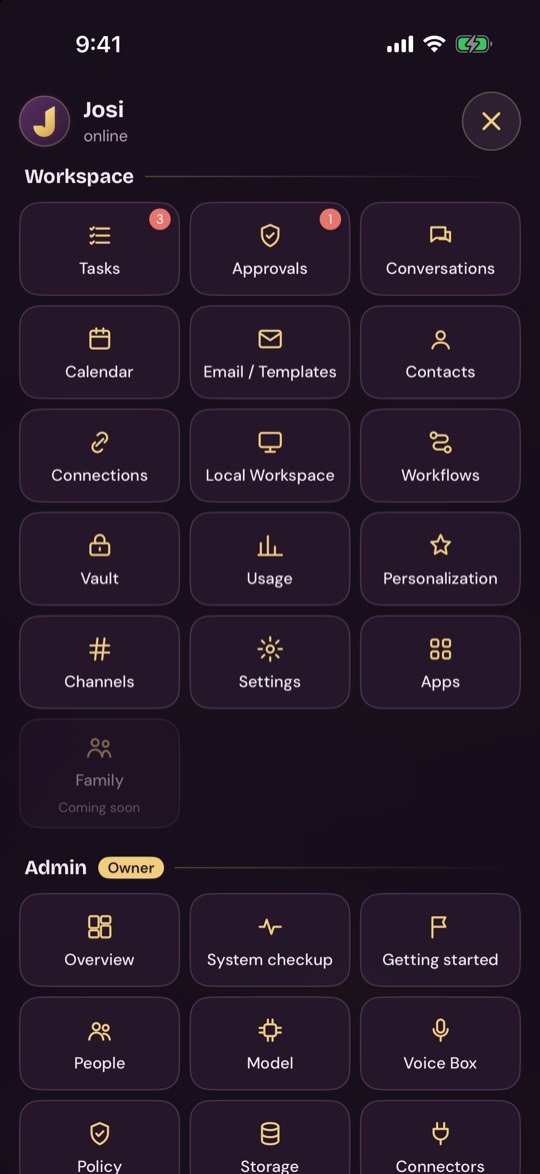
Tap the button at the top right to open the menu, and tap × to close it. Tap a tile to open that section. To go back, tap the arrow beside the J at the top left, or swipe right from the left edge of the screen.
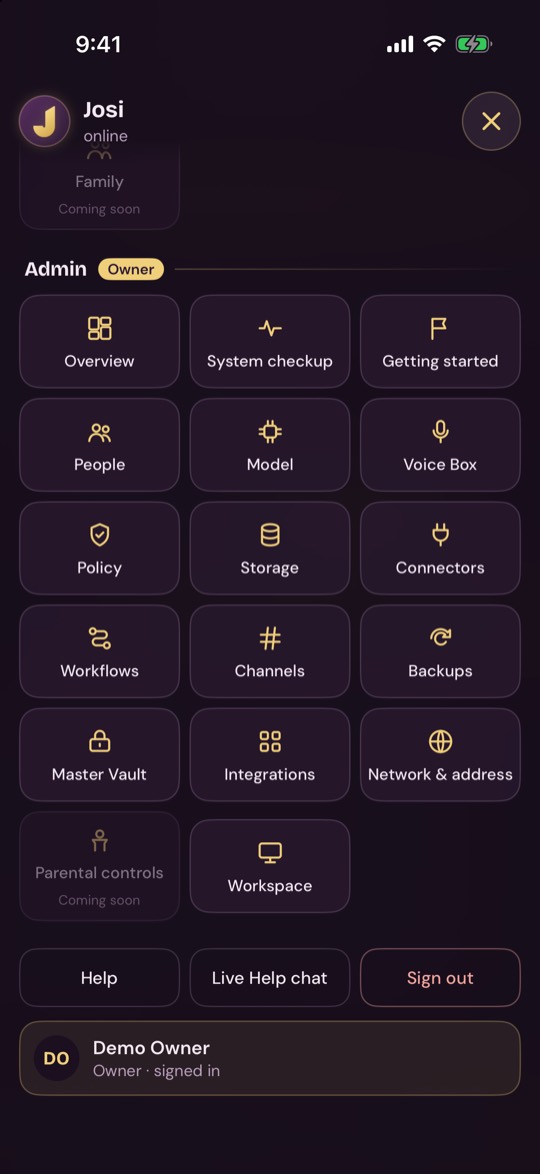
The tiles for Tasks and Approvals show how many are waiting. Tiles marked Coming soon aren't available yet. The Admin tiles only appear for owners.
At the bottom of the menu:
- Help opens your server's built-in help.
- Live Help chat opens this site in your browser, where you can ask questions.
- Sign out signs you out of this iPhone. It keeps your server's address, so you can sign in again.
- Your name and role are shown at the very bottom.
Workspace
These sections are for your own account.
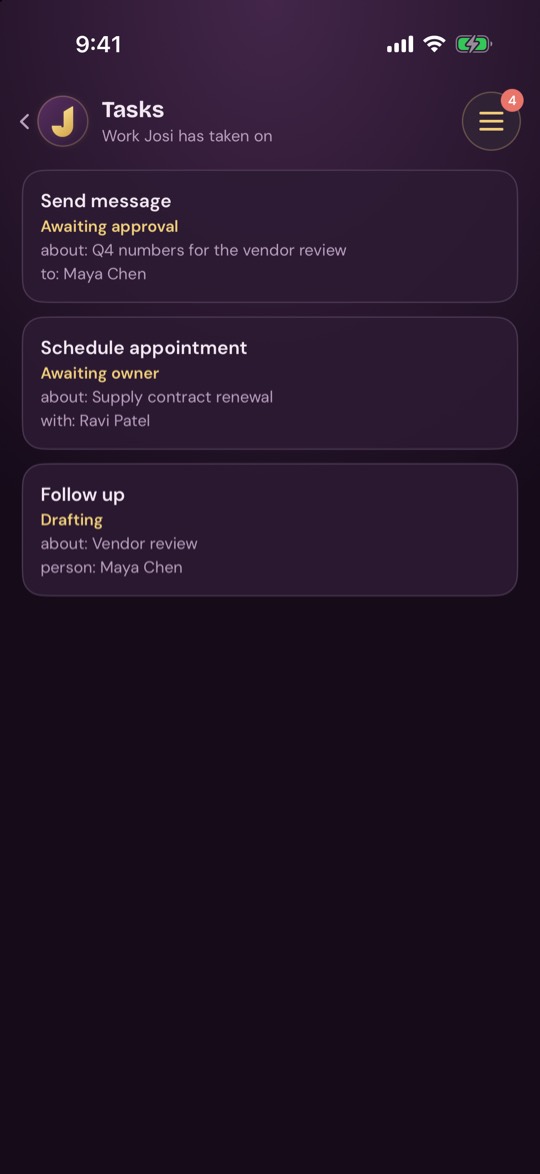
Tasks
Work Josi has taken on. Each card shows the kind of task, where it's up to, and its details, such as who it's for. To start a task, ask Josi in chat.
Approvals
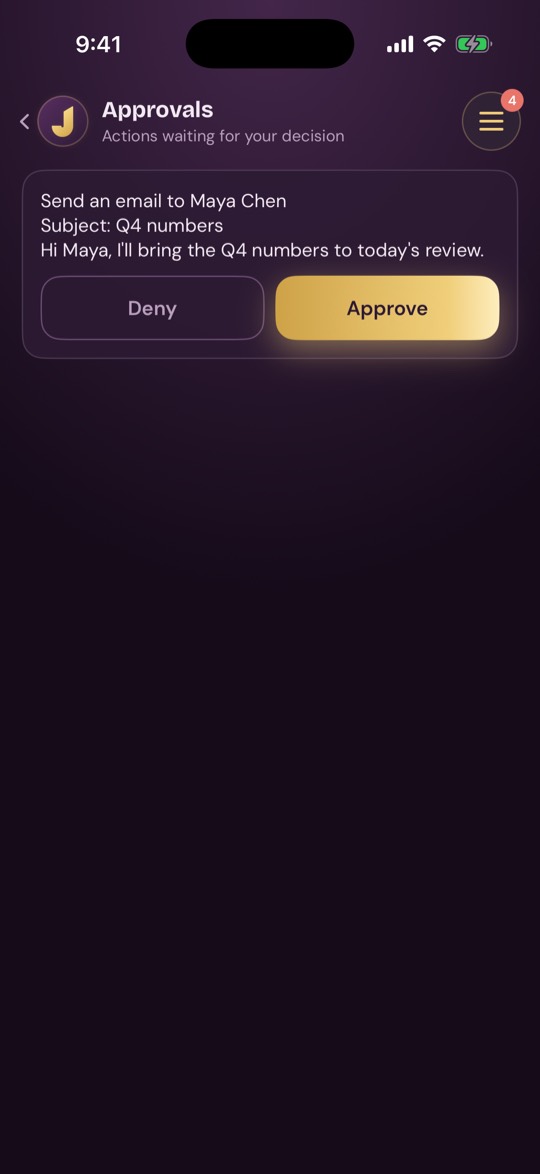
Everything waiting for your decision, including anything you set aside with Not now. Tap Approve or Deny. Your iPhone asks for Face ID, Touch ID or your passcode first, so your iPhone needs a passcode set.
Conversations
Your conversation history. Tap one to open it in chat, or tap New conversation to start fresh.

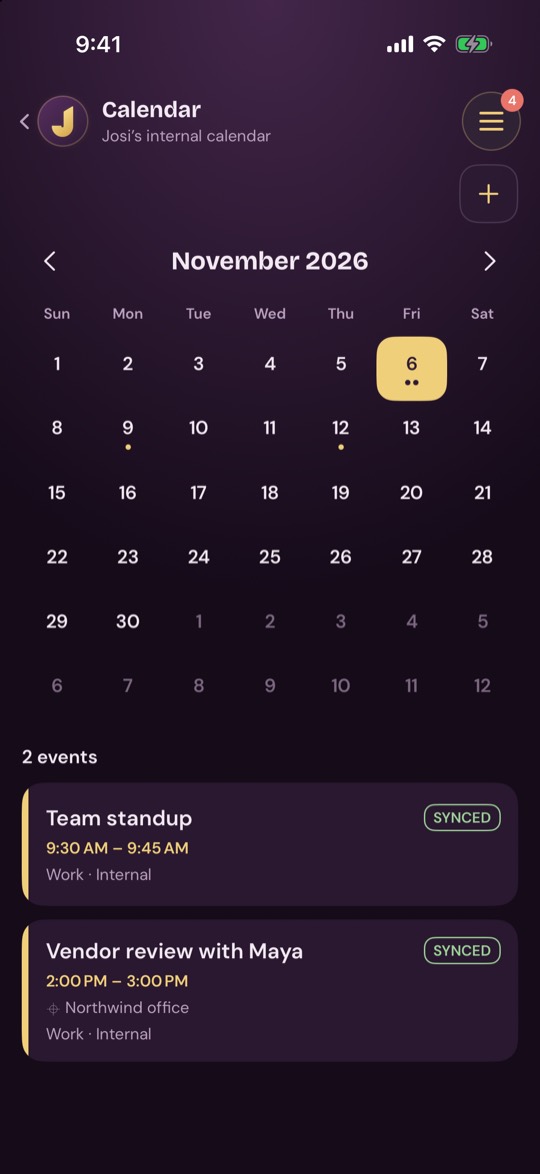
Calendar
Your calendar for the month. Dots mark days with events. Tap a day to see its events below, and use the arrows to change month. Each event shows its time, place, which calendar it's on and whether it has synced. Pull down to refresh.
To add an event, tap +. This takes you to chat, where you ask Josi to create it.
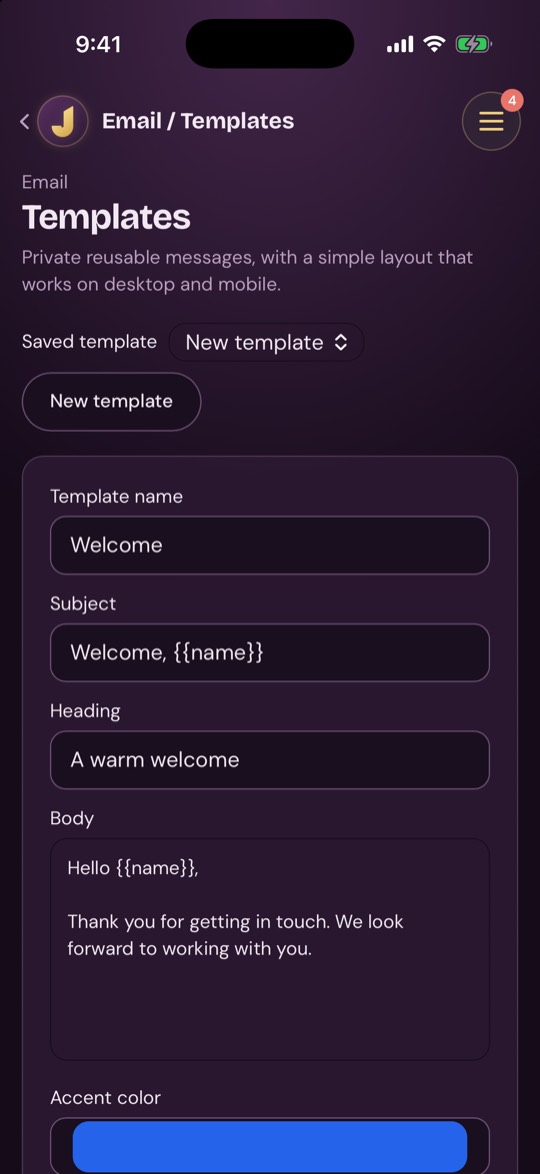
Email / Templates
Reusable emails you can preview and prepare for approval.
- Saved template picks a template to edit. New template starts a blank one.
- Fill in Template name, Subject, Heading, Body, Accent color, Button label, Button URL and Footer / signature, then tap Save template. Delete removes a saved one after you confirm.
- Live preview shows it as Desktop or Mobile. Plain-text fallback shows the text-only version.
- Merge fields:
{{recipient}},{{name}},{{date}}and{{time}}are filled in for you. They don't work in button URLs. - Draft an email: choose a Template or No template — plain text, fill in To and the other fields, then tap Prepare for approval. No email is sent until you approve it. Review and approve takes you to Approvals.
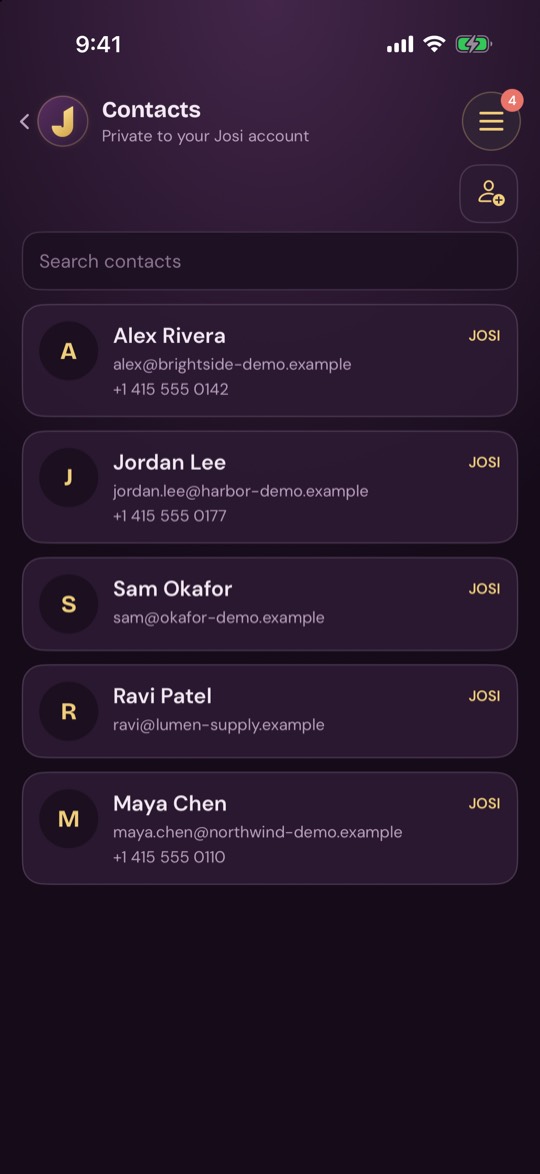
Contacts
Your contacts, private to your account. Use Search contacts to find someone by name, email or number. Pull down to refresh.
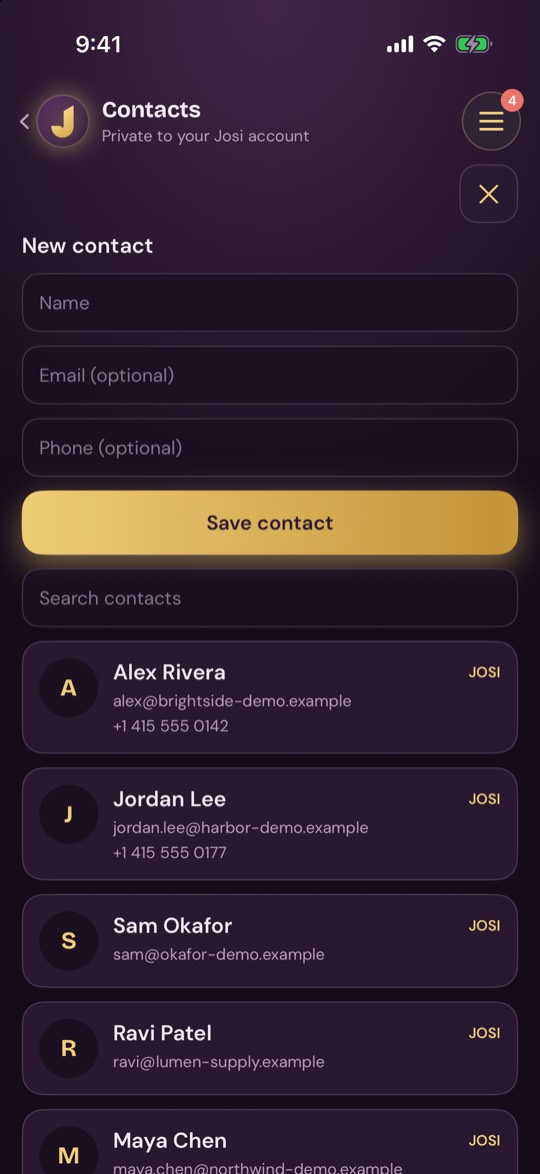
To add someone, tap the add button at the top right, enter a Name, and optionally Email and Phone, then tap Save contact.
If you've connected Google, you'll also see Two-way sync with Google. Turn it on and changes you make here go back to Google. If a contact was changed in both places, it shows a warning and nothing is overwritten.
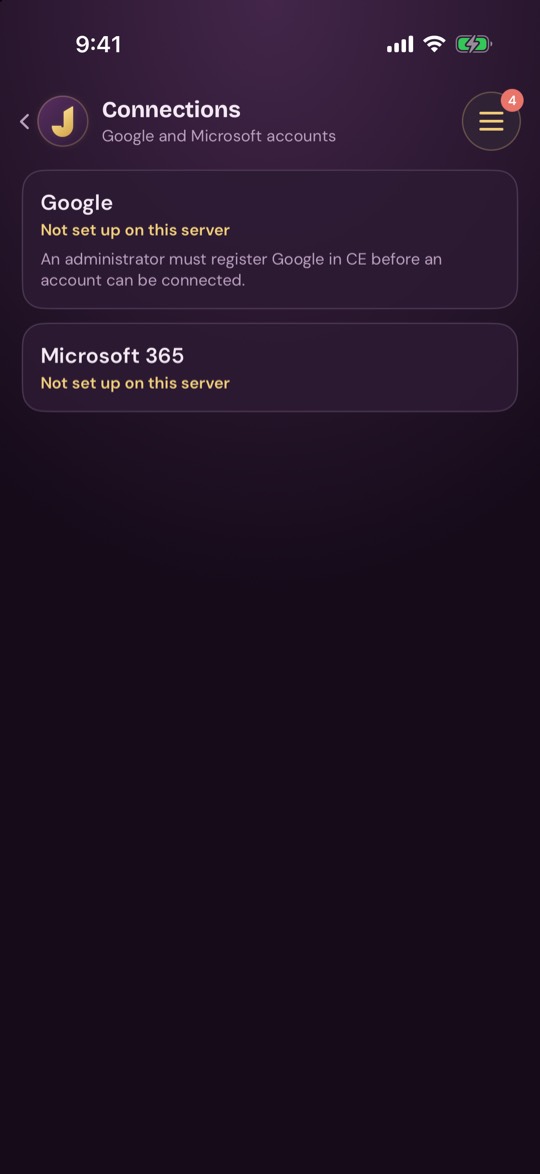
Connections
Your Google and Microsoft 365 accounts. Connect Google lets Josi read Gmail, Calendar, Contacts and Drive and, when you approve it, act in them. If it says Not set up on this server, an administrator needs to register the provider first under Connectors.
Once an account is connected, each thing Josi can do has its own switch, and the text under it explains what it means. A switch that's greyed out has been turned off by your administrator. Disconnect revokes access, and Josi deletes its copy.
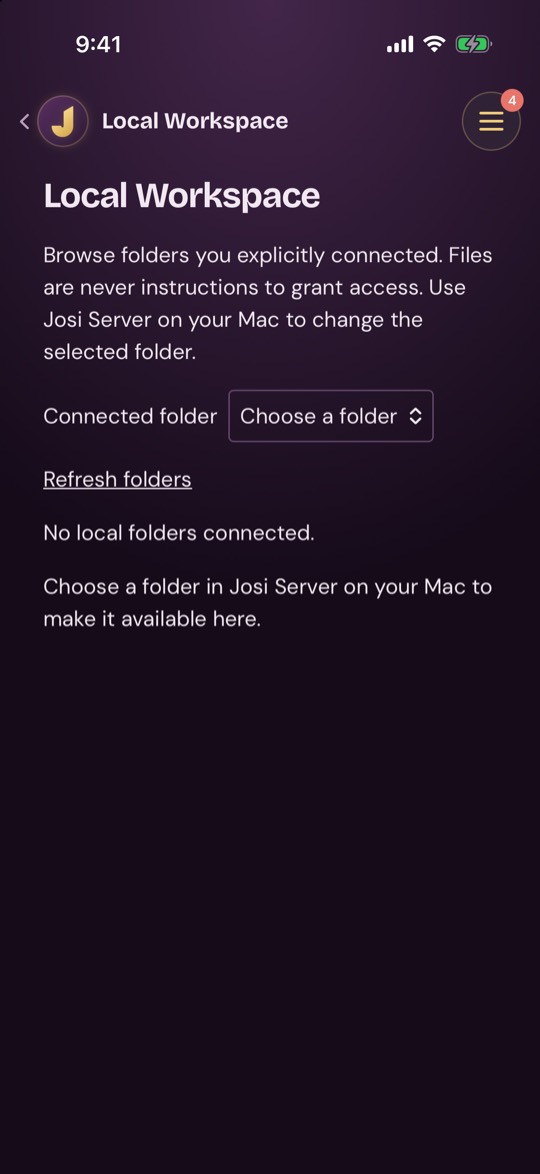
Local Workspace
Browse folders that have been connected to Josi and, where you're allowed, change the files in them.
- Connected folder picks a folder. Refresh folders updates the list. If none is connected, choose an Available folder and tap Connect folder, or ask your administrator.
- Inside a folder, use Search this folder, Sort (Name A–Z or Name Z–A) and Refresh.
- For each file: Preview and Download. If allowed, also Edit text, Rename / move and Delete…
- Create or upload text adds a text file. Enter a Filename and Contents, or use Upload text (up to 256 KiB). You can also make a folder with Review folder creation.
- Coding sandbox, if your administrator turned it on for you: pick an Operation (Check syntax or Execute JavaScript), paste the Exact source and tap Prepare for review.
Every change shows you the exact result first. Tap Approve exact change or Cancel.
Downloading a file from this page doesn't work in the iPhone app yet. Use the web app for that.
Workflows
Run Zapier, n8n and Make workflows that your administrator made available. Every run waits for your approval.
- Each workflow has an Input (JSON) box and a Prepare for approval button.
- Run history and approvals lists each run: Waiting for approval, Approved, Running, Completed, Failed, Declined or Expired.
- For a waiting run, tap Review exact input, then Approve exact run or Deny.

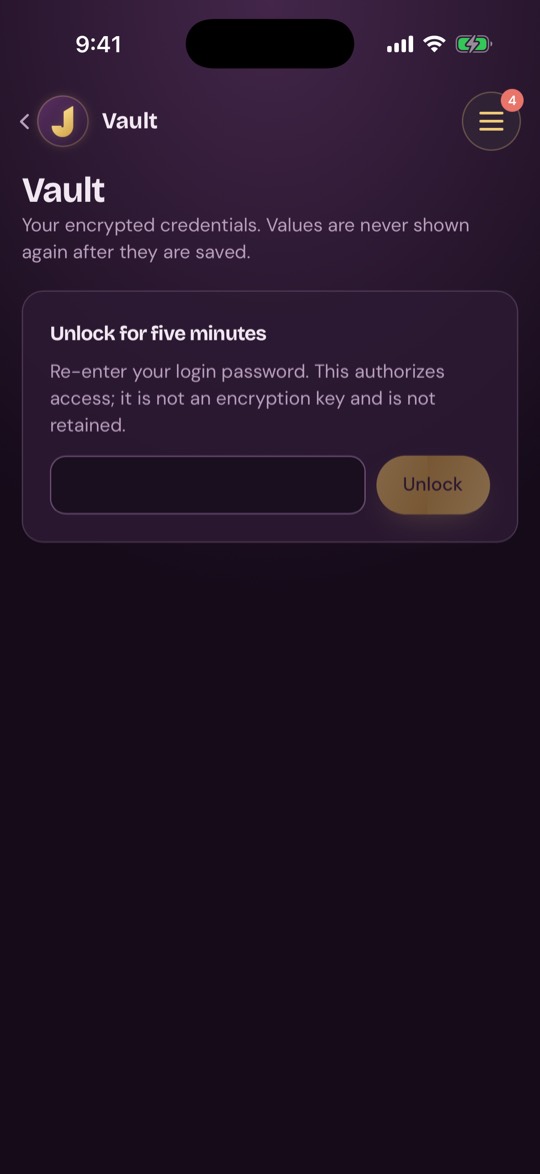
Vault
Your own encrypted credentials. Values are never shown again after you save them.
- Unlock for five minutes: enter your sign-in password and tap Unlock.
- Store a credential: choose a Type (password, api key, oauth token, secure note, recovery code, certificate, private key or other), fill in Service, Account or slot, Label and Secret, then tap Save encrypted.
- Saved credentials: Check or Delete each one.
If it says Master Vault locked, an administrator needs to unlock it.
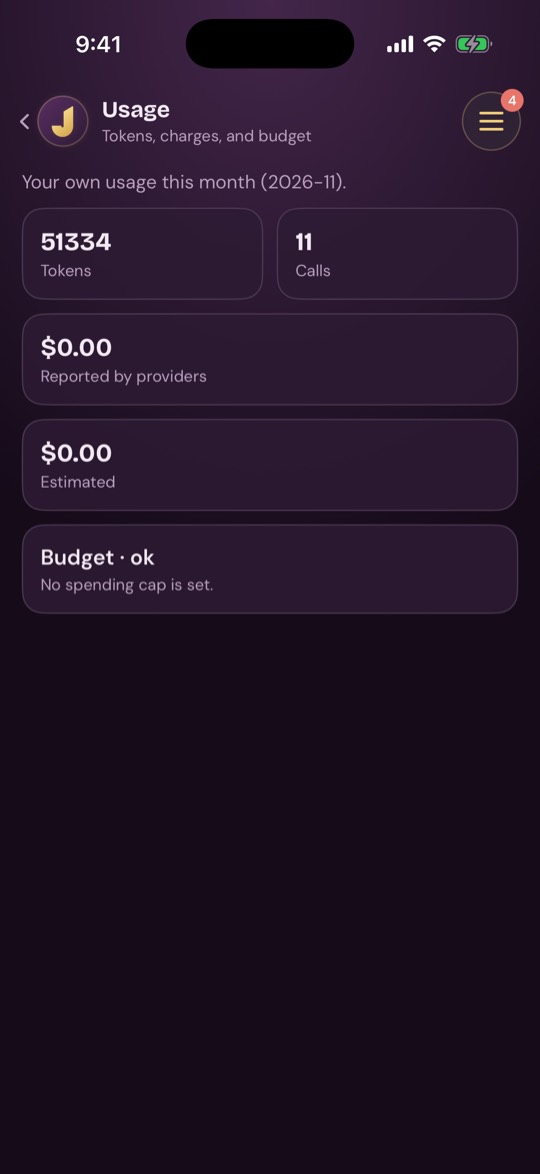
Usage
Your own usage this month: Tokens, Calls, the cost Reported by providers and the Estimated cost. If your administrator has set a budget, the Budget card shows where you stand. There's nothing to change here.
Personalization
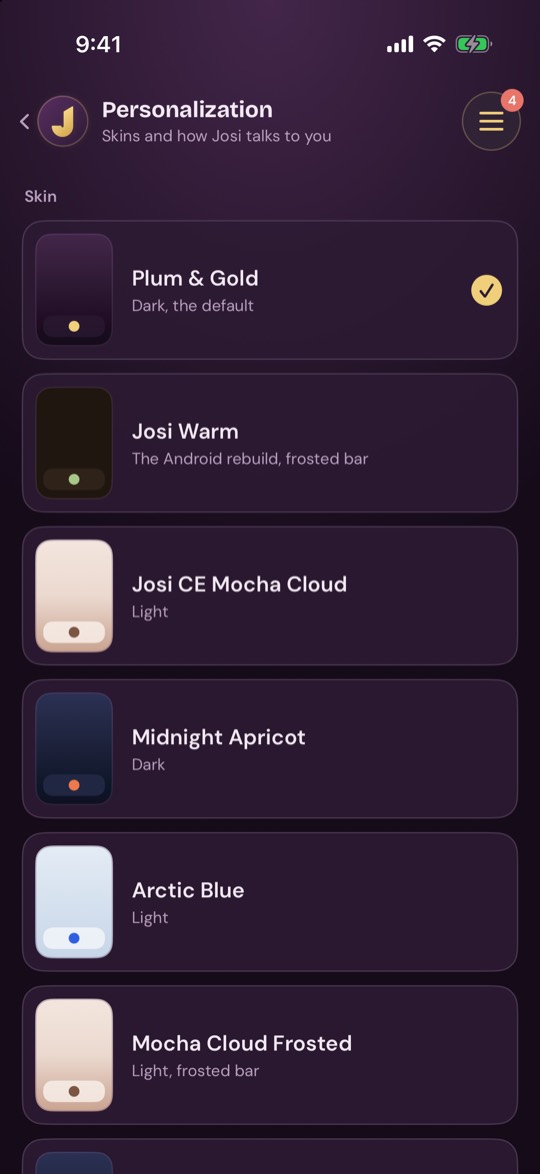
Skin changes how the app looks, straight away. There are nine:
- Plum & Gold (dark, the default)
- Josi Warm (frosted bar)
- Mocha Cloud (light)
- Midnight Apricot (dark)
- Arctic Blue (light)
- Frosted versions of Mocha Cloud, Midnight Apricot, Plum & Gold and Arctic Blue
You can also change the skin in the iPhone's Settings app, under Josi.
Chat text size makes chat messages bigger or smaller: 90%, 100%, 115% or 130%.
Under Josi:
- Your assistant: how Josi talks to you and what it remembers.
- Remembered: links and notes you saved.
Your assistant
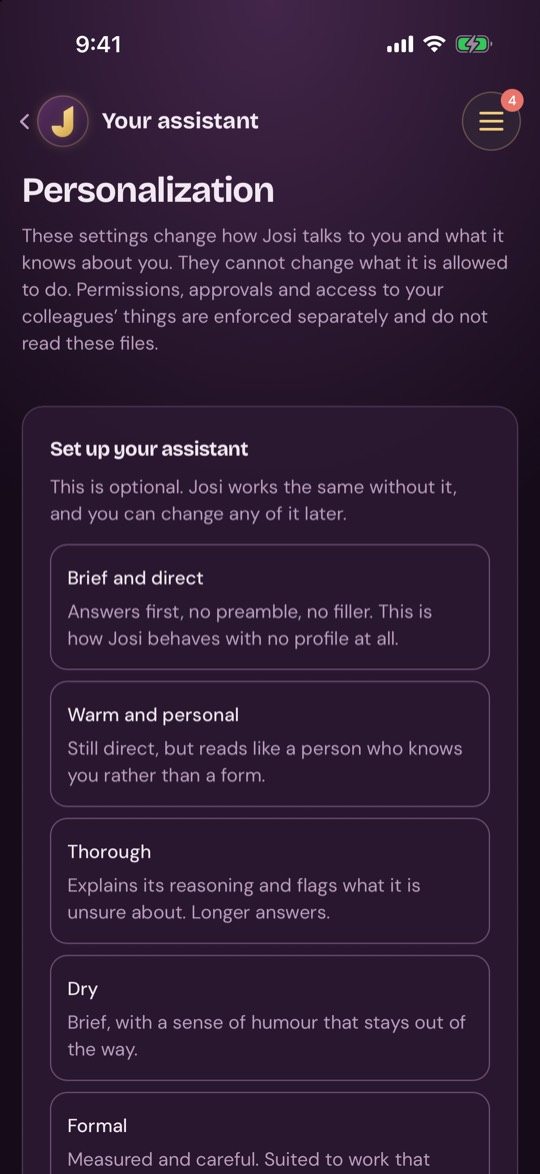
How Josi talks to you and what it knows about you. These settings can't change what Josi is allowed to do.
- Set up your assistant appears the first time. Pick a style (Brief and direct, Warm and personal, Thorough, Dry or Formal), or tap Skip — use the default.
- Three tabs, Soul, About me and Working style, each hold a short file you can edit. Each tab lists what it can and can't do. Tap Save when you're done.
- On Soul, Start from a preset fills in a style and Hear how it sounds shows a sample reply.
- Earlier versions lets you Restore a previous file.
- What is actually in force, on Working style, shows your choices after any rules your administrator set.
- Memory: type something for Josi to remember and tap Add. Each memory can be changed with Correct, kept on top with Pin or removed with Delete. Under Review proposed memories, tap Keep this memory or Discard.
Remembered
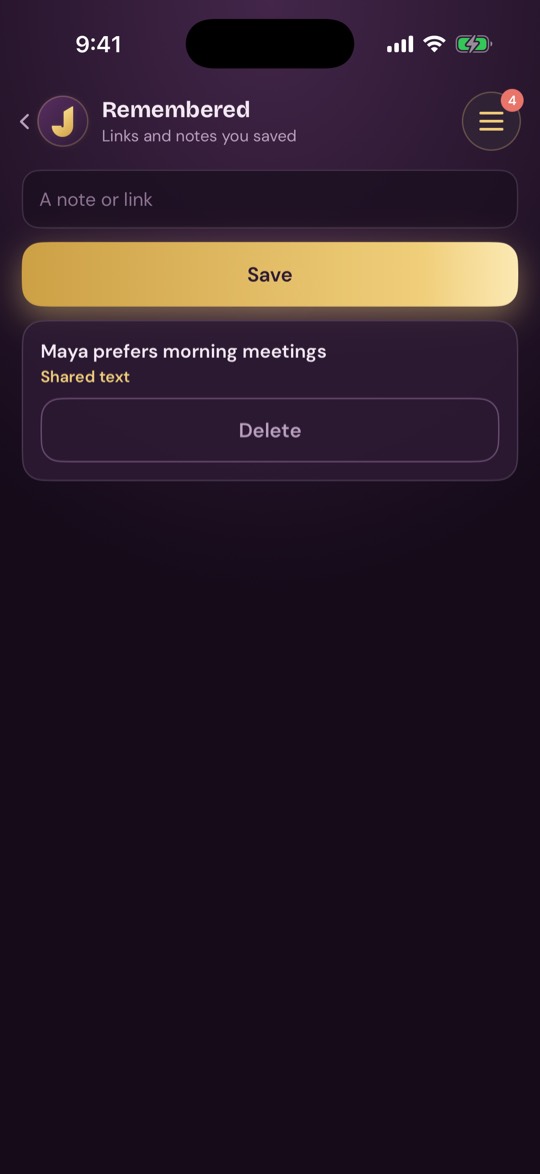
Type A note or link and tap Save. Saved items are listed below, and links can be tapped. Delete removes one.
Channels
Reach the same private workspace from Slack.
- Slack: tap Create link code and follow the instruction. The code works once and lasts 10 minutes. If the channel shows Off, an administrator needs to turn it on under Channels in Admin.
- Your linked identities lists what you've linked. Disconnect removes one.
Apps
Links to the iPhone and Android apps. There's nothing to change here.
Family
Coming soon.
Settings
Settings holds your account, your Drive folders, your privacy choice and the server this iPhone uses.
Account
Your approval choices, your data and your sign-in security.
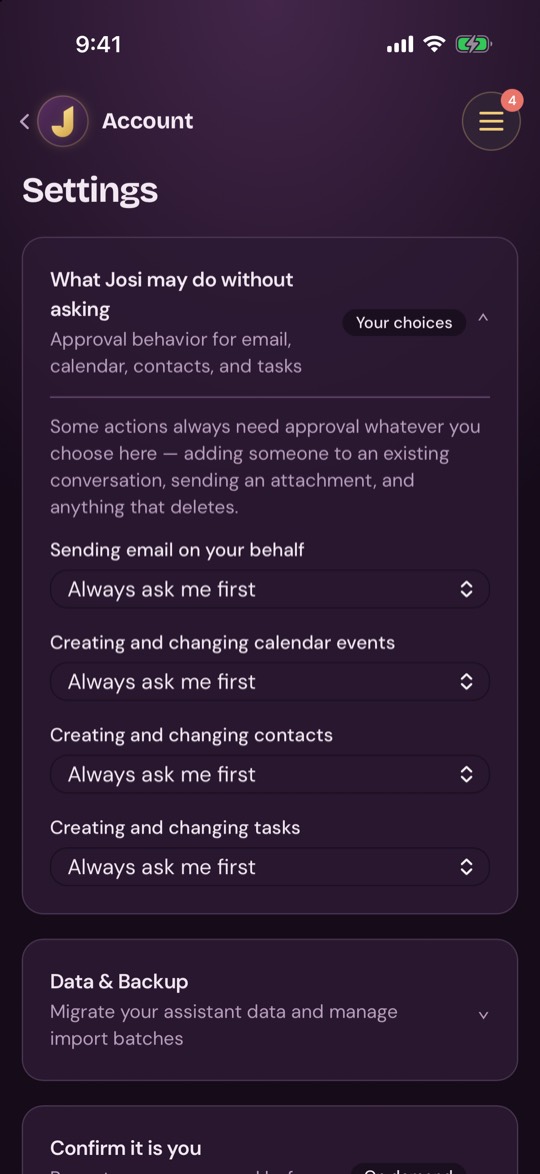
What Josi may do without asking. There's one choice each for Sending email on your behalf, Creating and changing calendar events, Creating and changing contacts and Creating and changing tasks:
- Always ask me first
- Ask only for risky or destructive actions
- Allow routine actions automatically
Your administrator can limit these, in which case the looser options disappear. Some actions always ask: adding someone to an existing conversation, sending an attachment and anything that deletes.
Data & Backup. Migrate from another assistant brings in your history in four steps: upload, select, review, receipt. Choose a Source assistant (Detect from documented format, OpenClaw, Hermes or Josi version-1 export) and your files, tap Scan and preview, pick what to keep, then import it. Under Your import batches you can read a Receipt or Roll back batch. The Imported conversation archive lets you search and read what came in.
Confirm it is you. Enter your Password and tap Confirm. This lasts 15 minutes.
Multi-factor authentication.
- To turn it on, tap Set up MFA, scan the QR code with your authenticator app or use the key shown, enter the code and tap Verify and enable. Save your recovery codes when they appear.
- To turn it off, enter your password and tap Disable MFA.
Drive folders
The Google Drive folders Josi can read. Add folders from the web app and they appear here. Sync refreshes a folder and Remove takes it away.

Withdraw AI permission
Stops your messages and connected details from being sent for AI processing. Tap it, then tap Withdraw. Chat stays blocked until you review the disclosure and allow it again.
Change server
Signs you out and forgets this server's address on this iPhone, so you can enter another. Tap it, then confirm.
Admin
These sections only appear for owners. They control the whole server, so changes here affect everyone on it.
Overview
Your server at a glance. Check again refreshes it. You'll see counts of conversations, messages and tasks, then System checkup with a status for each part of the server. Tap a row to open that part. Recommendations lists what to fix. How reliably work completes and Activity per person show how things are going.
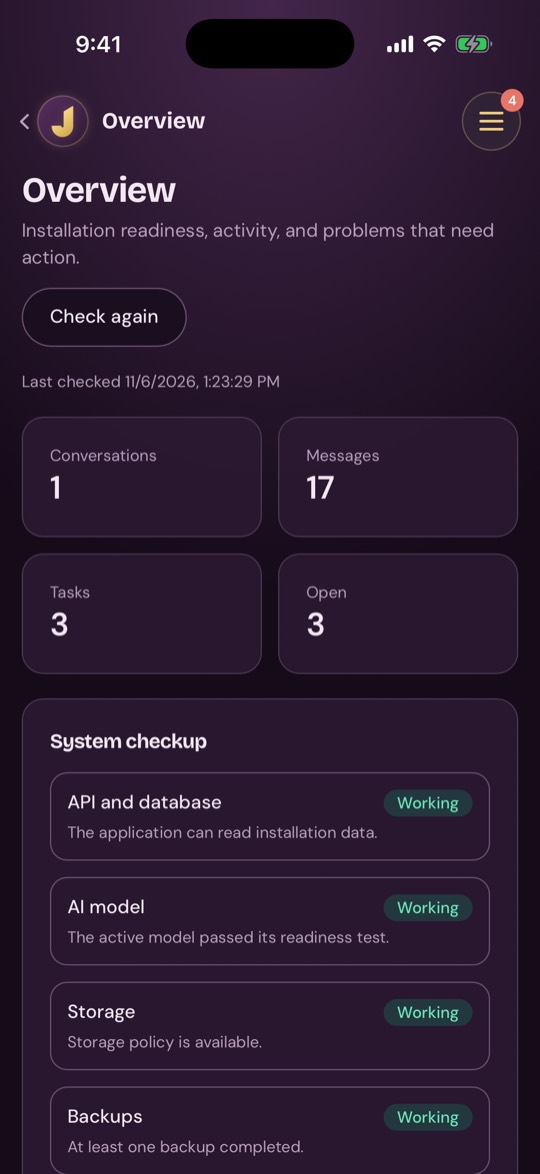
System checkup
Josi Doctor checks your installation and explains what it finds.
- Josi updates shows your version. Where updates are handled here, use Check for updates. To install one, type the words it asks for and tap Back up and update. On a Mac server, updates come from the signed Josi installer instead.
- Check system runs the checks. What Josi checked lists the results, and failed checks link to the page that fixes them.
- If a safe repair exists, tap Prepare automatic fix, review it, then tap Apply approved fix or Cancel.
Getting started
A checklist of what's left after setup, grouped as Protect this installation, Finish essential setup, Optional capabilities and Optional connections and devices. Each item has Do this and, unless it's critical, Skip. Put it back on the list undoes a skip. Done — go to my dashboard leaves the page.
People
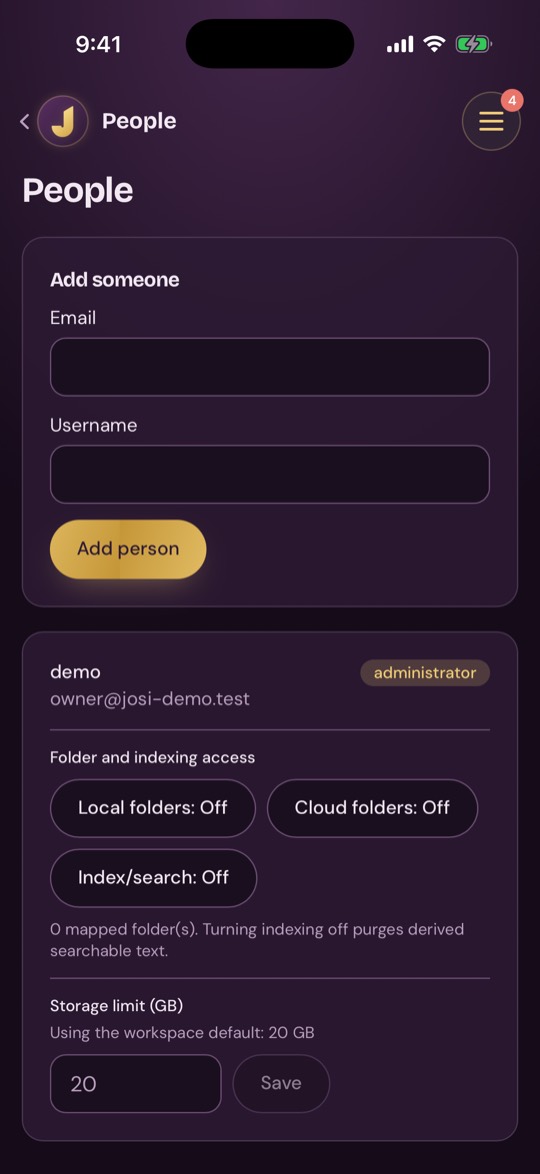
Add someone: enter an Email and Username and tap Add person, then give them the invite link that appears. They use it once to set a password.
For each person:
- Local folders, Cloud folders and Index/search switch on or off. Turning indexing off removes their searchable text.
- Storage limit (GB) sets their limit. Tap Save, or Reset to default to go back to the default.
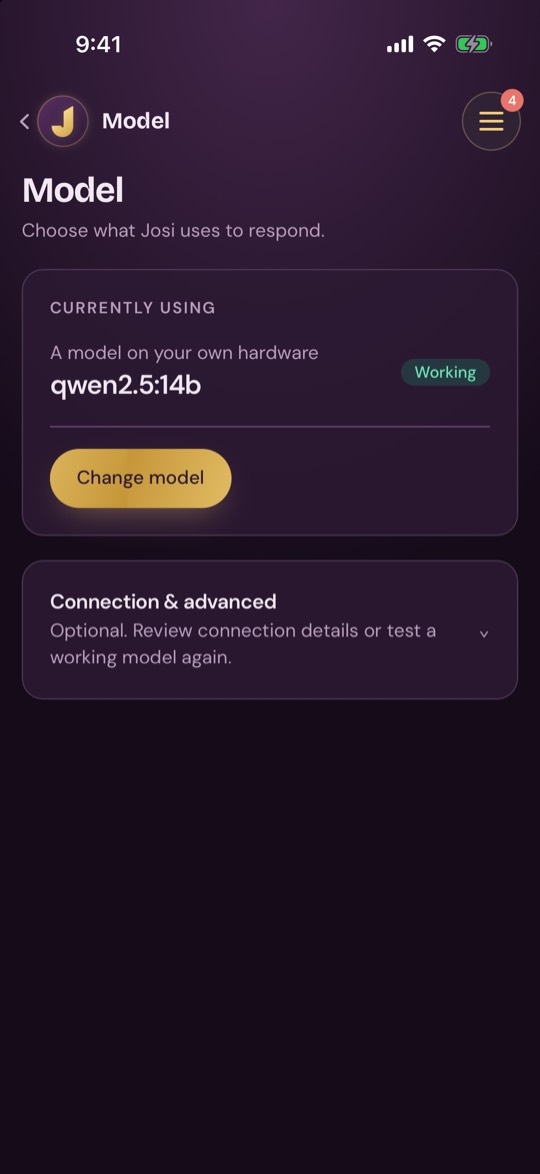
Model
Choose the AI model Josi uses. Currently using shows it and whether it passed its test.
- Tap Change model and choose a Provider. This can be a model on your own hardware or a cloud provider such as OpenAI, Anthropic, Google Gemini, Mistral or OpenRouter. Some servers can also use your own ChatGPT or Claude sign-in.
- Enter what that provider needs, usually your own API key, or an address for your own model server.
- Tap Show me my models and pick one from Model, or type its name.
- For an outside provider, tick the box to confirm that data leaves your server.
- Tap Save & test.
Connection & advanced shows the model's details and has Test again.
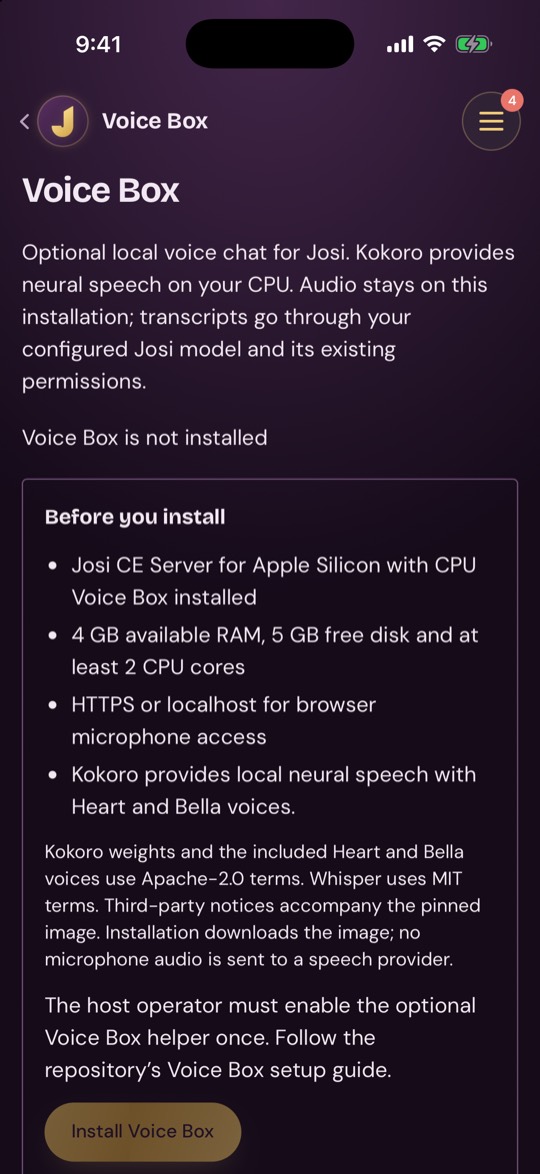
Voice Box
Optional voice chat that runs on your server. Tap Install Voice Box or Enable Voice Box, depending on your server.
Once it's ready, Speech settings has:
- Voice: Heart or Bella, both US English.
- Transcription model: Whisper Base, or the lighter Whisper Tiny.
- Transcription acceleration: CPU or NVIDIA GPU.
- Speech detection threshold, Pause before sending (ms) and Speaking speed.
Tap Save and verify to apply changes and Preview voice to hear it. You can also Restart, update, roll back, or uninstall or turn it off.
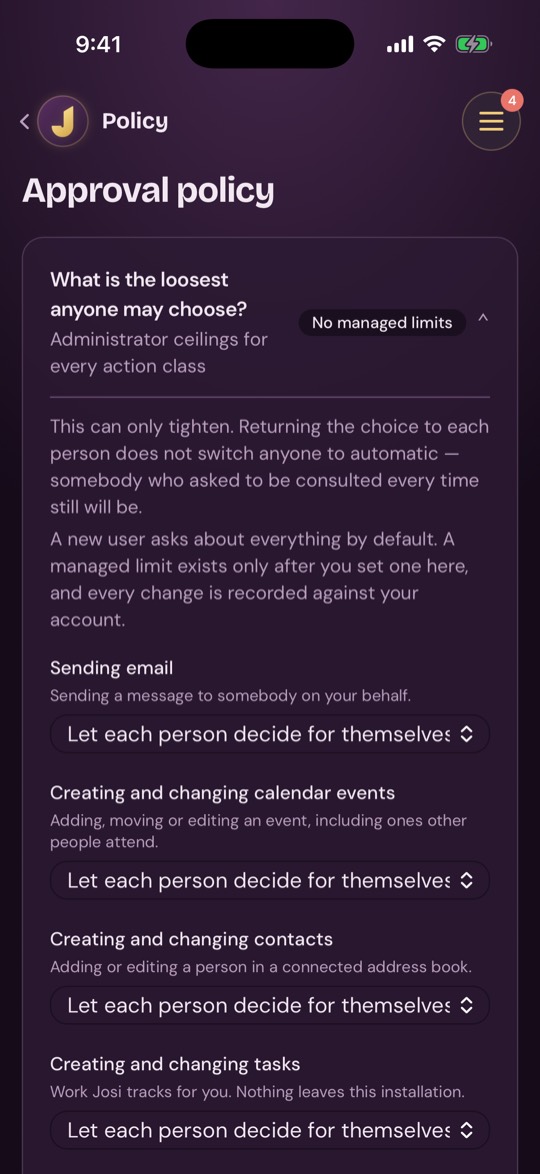
Policy
Sets the loosest approval level anyone on your server may choose. It can only tighten what people pick for themselves. There's one choice per action: Ask me every time, Ask only for risky actions, or Let each person decide for themselves.
The actions are sending email and creating and changing calendar events, contacts and tasks. Actions marked High impact are deleting anything, cancelling a commitment, involving people outside the organisation, publishing anything publicly, spending money, signing or accepting terms, and changing who can see or do what. For these, Josi asks before each one whatever you choose.
Changes save straight away and are recorded against your account.
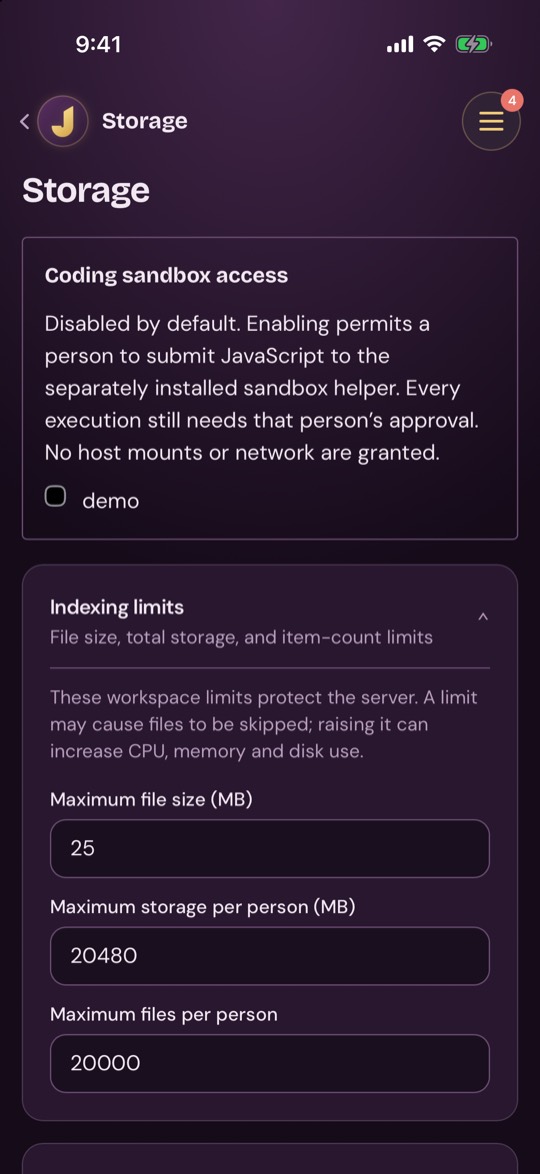
Storage
- Coding sandbox access: tick each person who may use it. This saves straight away.
- Indexing limits: Maximum file size (MB), Maximum storage per person (MB) and Maximum files per person.
- Allowed file types: a list of file extensions.
- Archives: Index supported archives, with limits on entries, size, depth and time.
- Windows antivirus, on Windows servers: Require malware scanning before file processing.
Tap Save storage settings when you're done.
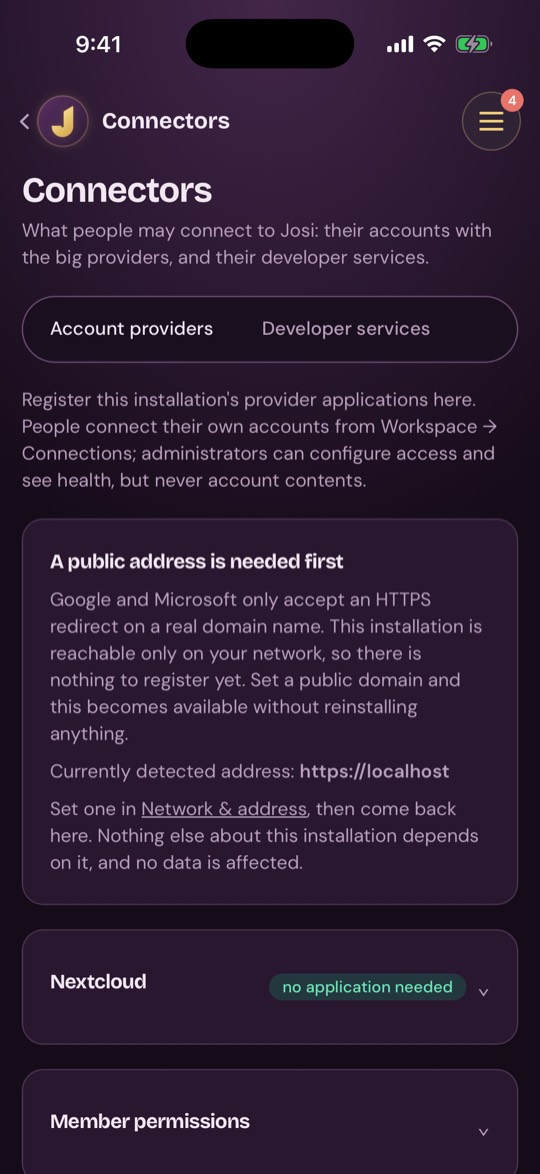
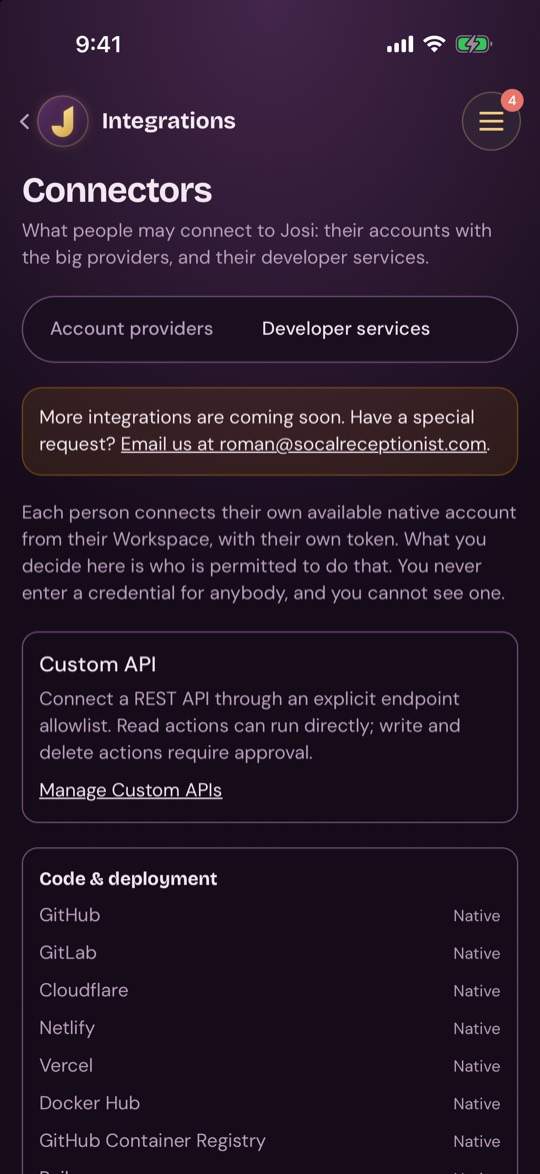
Connectors
Decides what people may connect. It has two views, Account providers and Developer services.
Account providers. Google, Microsoft 365, Dropbox and Box each need an application that you register with that company yourself, with your own keys. Josi ships with none. Registering needs a real domain name for your server, served over HTTPS; a LAN IP address can't be registered, and until you set one under Network & address the page says A public address is needed first. Copy the redirect URL into the provider's console, enter the Client ID and Client secret and tap Save. Nextcloud needs no application.
Member permissions switches each permission Allowed or Switched off for everyone, such as reading mail or changing calendar events. Connection health shows each person's connections, with Disconnect.
Developer services. For each service, such as GitHub, GitLab, Cloudflare, Netlify, Notion or Linear, choose Who may connect this: Not allowed, Allowed for everyone, or Allowed for specific people. Then tap Save who may connect. Manage Custom APIs connects other REST services. Obsidian vaults are read from here too.
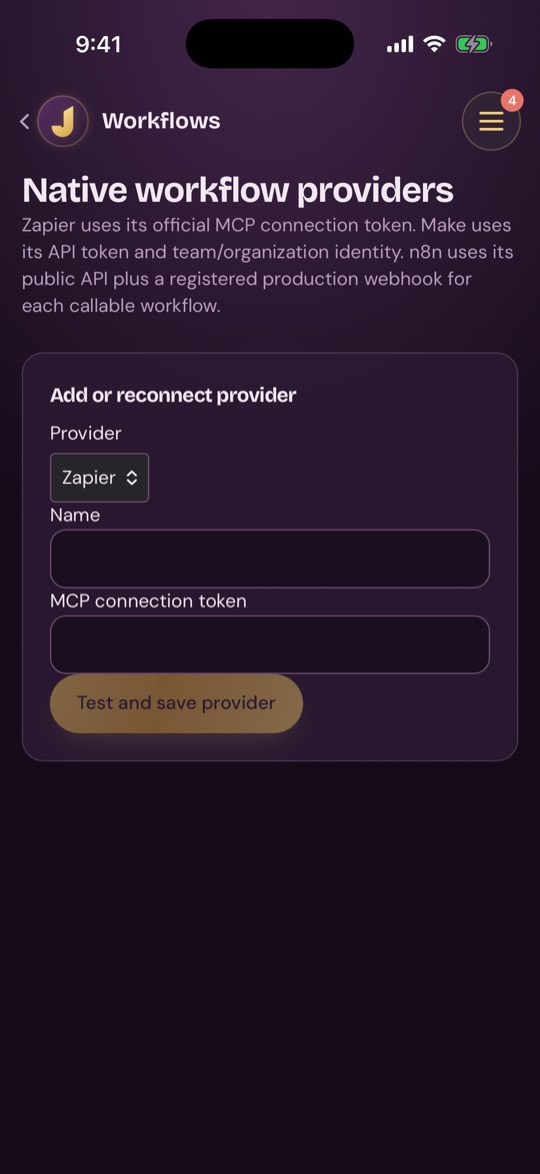
Workflows
Connects Zapier, n8n or Make. Under Add or reconnect provider, choose the Provider, enter a Name and its connection details, and tap Test and save provider.
On a connected provider, tap Discover workflows, then Expose to Josi on each one people may run. Remove from Josi takes one back and Disconnect removes the provider.
Channels
Sets up Slack for your server. Fill in the Signing secret and Bot token from Slack, then tap Save and Test. Turn on is available after a passing test. Webhook URLs shows where Slack should deliver messages.
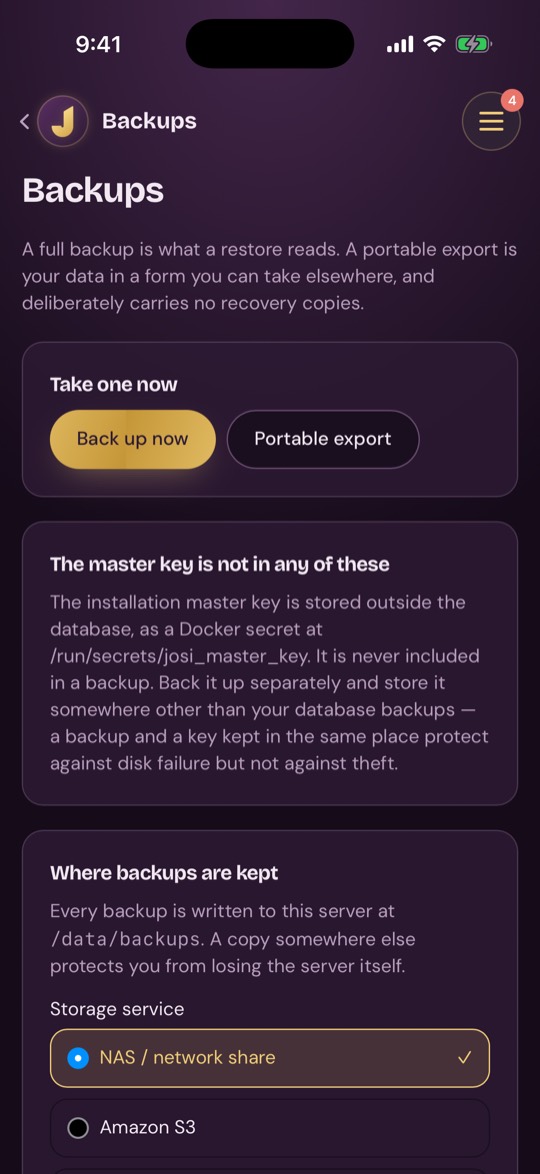
Backups
- Back up now takes a full backup, which is what a restore reads. Portable export makes a copy of your data you can take elsewhere.
- Where backups are kept: choose a Storage service (NAS / network share, Amazon S3, Cloudflare R2 or Backblaze B2), fill in its details and tap Save destination. Encrypt off-site backups is on by default. If a backup recovery key appears, save it.
- Test connection, Change and Remove destination manage a saved destination.
- History lists past backups. Downloading from this page doesn't work in the iPhone app yet, so use the web app for that.
Your master key is never in a backup. Keep it separately.
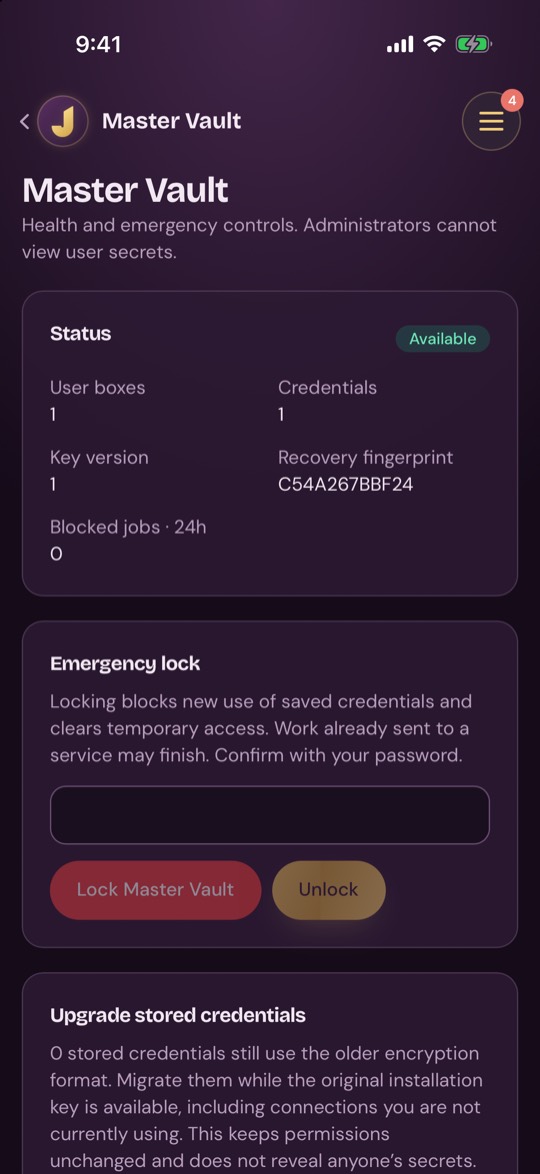
Master Vault
Health and emergency controls. Administrators can't see anyone's secrets.
- Status shows user boxes, credentials, key version and the recovery fingerprint.
- Emergency lock: enter your password and tap Lock Master Vault to stop saved credentials being used, or Unlock to start again.
- Upgrade stored credentials: tap Check and migrate credentials.
- Offline recovery: enter your recovery key and tap Recover Master Vault.
Integrations
This tile opens the Developer services view of Connectors.
Network & address
- Addresses shows your server's public address and its address on your network. This is the address you enter in the app. It can be a LAN IP, a hostname or a domain, and it needs HTTPS for access from outside your network.
- Tailscale lets you reach your server without a public domain. Once Tailscale is connected, tap Use the Tailscale address. Your server needs a restart afterwards.
- Open protected maintenance: enter your Admin password and tap Continue to change network, domain and port settings. It opens a separate tool for a short time.
Parental controls
Coming soon.
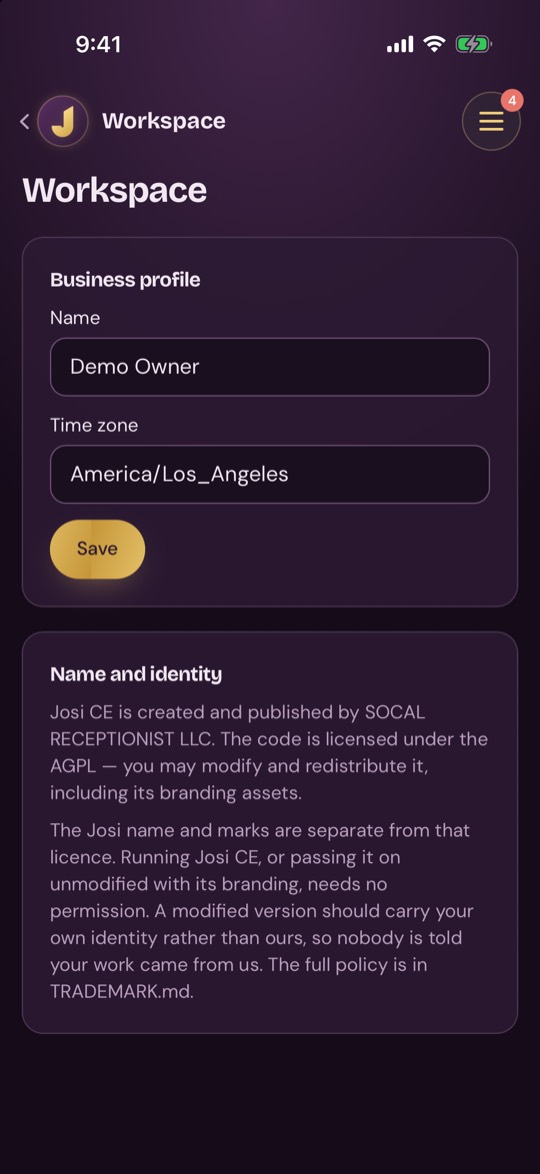
Workspace
Business profile: set your Name and Time zone and tap Save. Name and identity explains the licence and trademark.
Troubleshooting
Josi couldn't reach your server
Check that your iPhone is online, that your server is running and that the address
you entered is reachable from where you are. A LAN address only works on your own
network. Away from home, use a hostname or domain over https://. You can
check the address under Admin → Network & address on your server.
Enter your server's https address
The app only accepts https:// addresses, apart from localhost,
.local names and addresses on your own network. Add https:// and
try again. If the app says the address is not a compatible Josi server, check that it
points at your Josi server and not at another service or a proxy page.
That code is wrong, used, or expired
Authenticator codes change every 30 seconds and each one works once. Wait for a new code and enter it. Also check that the time on your iPhone is set automatically.
Sign-in isn't set up on this server
Apple or Google sign-in hasn't been set up on your server. Use your password.
That Google account isn't linked to anyone on this server
Sign in with your password, or ask your administrator to link your Google account.
AI sharing is locked
Your server hasn't published its AI privacy disclosure yet, so Josi won't send messages. Ask your administrator to finish setting up a model, then tap Try again.
Voice isn't set up on your server yet
An owner can set it up under Voice Box.
Josi needs the microphone for voice chat
Open the iPhone's Settings app, find Josi and turn on Microphone.
Set a passcode on this iPhone to decide approvals
Approvals need Face ID, Touch ID or a passcode. Set a passcode in the iPhone's Settings app.
Offline, showing saved tasks, contacts or calendar
The app can't reach your server right now, so it's showing the last copy it saved. Open the page again once you're back online.
Josi couldn't verify your session
Your sign-in is still saved. Check your connection and tap Try again.